Building a 4K Editing Rig That Stays Fast Under Pressure
A 4K editing workstation has to process far more than a high-resolution image. Modern projects may combine 10-bit footage, multiple camera angles, motion graphics, noise reduction, color grades, and demanding audio plugins. The right computer must sustain that workload for hours without becoming sluggish, excessively loud, or difficult to upgrade.
The strongest build balances the processor, memory capacity, storage bandwidth, cooling, and graphics acceleration. Spending heavily on one component while using a slow scratch drive or insufficient RAM can create bottlenecks that are obvious during playback and export.
This guide focuses on the core requirements for a reliable 4K video editing PC, with practical guidance for Premiere Pro, DaVinci Resolve, Final Cut alternatives on Windows, and similar creative applications. For additional hardware testing and build coverage, the Hardware Hounds video library provides useful context around performance, thermals, and noise.
Start With The Editing Workload
The ideal specification depends on the footage and the way it is edited. A single stream of compressed 4K H.264 video is relatively manageable, while several streams of 4K ProRes, DNxHR, or RAW footage can place sustained pressure on the CPU, memory subsystem, storage, and GPU at the same time.
Codec choice matters because highly compressed footage often requires more decoding work. H.264 and H.265 files may consume considerable processor resources even when their file sizes are small. Intraframe formats such as ProRes and DNxHR are easier to scrub, but they need more storage capacity and sustained drive performance.
Effects-heavy timelines increase the demand further. Temporal noise reduction, stabilization, 3D titles, complex transitions, and color grading can shift more of the workload toward the GPU. A computer intended for occasional cuts and basic corrections does not need the same specification as a workstation built for professional finishing.
Choose A CPU For Playback And Export
For most 4K editors, a modern six-core processor is a reasonable entry point, while eight or more high-performance cores provide a smoother experience with multicamera sequences and frequent exports. Current midrange CPUs from AMD and Intel can handle 4K work well when paired with sufficient cooling and fast memory.
Core count is important during rendering and encoding, but architecture, clock speed, and media engine support also affect everyday responsiveness. Intel chips with integrated graphics can offer useful hardware decoding and encoding support for common H.264 and H.265 workflows. AMD processors can deliver excellent multi-core performance, especially when the application leans heavily on CPU rendering.
A high-end 16-core CPU is worthwhile for frequent batch exports, complex After Effects compositions, or professional workloads where minutes saved on every delivery have real value. It is less sensible for a simple editing system if the budget would be better spent on more RAM, a second SSD, or a stronger graphics card.
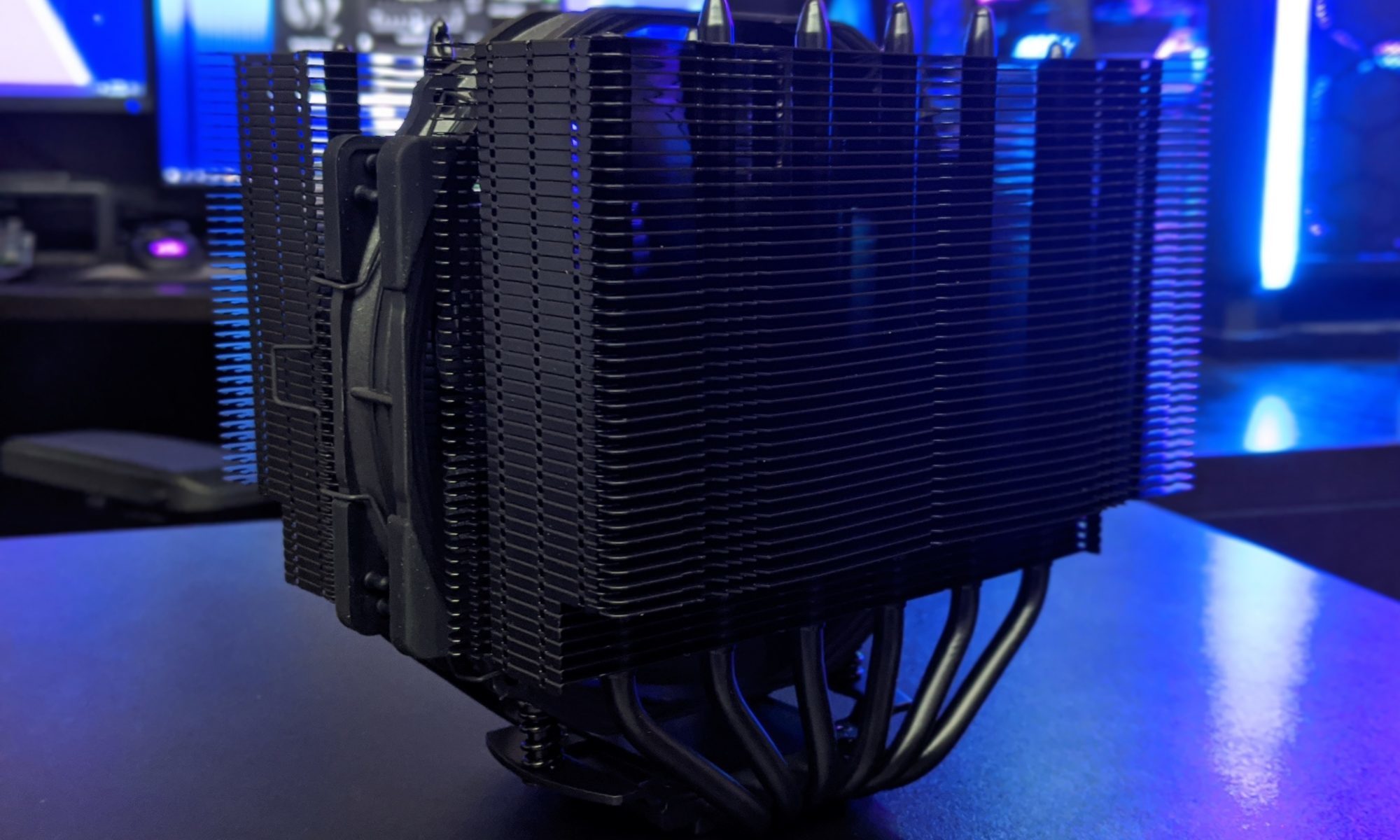
Processor power must be matched with adequate cooling. A capable tower cooler or 240 mm liquid cooler can help maintain sustained boost clocks, while a poorly cooled system may slow down during long exports. Hardware Hounds covers PC component testing that can help builders compare real-world performance, temperature, and acoustic behavior.
Plan Memory Around Project Complexity
Memory capacity affects how comfortably an editor can work with large timelines, high-resolution source files, and other applications running in the background. For basic 4K projects, 32GB of RAM is a practical minimum. It can support standard editing, moderate color correction, and a reasonable number of browser tabs without constant paging to the SSD.
A 64GB configuration is a better target for serious enthusiasts and professionals. It gives the operating system room to cache media, allows an editing application and graphics software to run together, and reduces slowdowns when working with large compositions or multicamera footage.
Editors handling 6K or 8K source files, extensive visual effects, virtual machines, or very large timelines may benefit from 96GB or 128GB. Capacity should come before extreme memory speed. A stable 64GB kit is more useful than a faster 32GB kit that forces the system to rely on a page file.
Use matched memory modules and check the motherboard’s qualified memory list when possible. Two-module kits are generally easier to run at their advertised speed than four-module arrangements. DDR5 is common in new builds, while DDR4 remains viable for a cost-conscious workstation based on an older platform.
Separate Your Storage Roles
Storage requirements for a 4K editing PC are easier to manage when each drive has a clear job. A fast NVMe SSD for the operating system and applications keeps software launches responsive, but it should not be the only drive in the machine.
A second NVMe drive is ideal for active projects, cache files, previews, and proxy media. This separation prevents the system drive from handling application activity and sustained video reads at the same time. A PCIe 4.0 SSD offers excellent performance for most users, while an expensive PCIe 5.0 drive rarely produces a proportional improvement in normal editing.
Capacity is equally important. A 1TB system drive can work, but 2TB provides more practical headroom for applications, cache data, and temporary files. A dedicated 2TB or 4TB project drive gives editors room to keep current footage locally instead of constantly moving files between devices.
Long-term storage should use additional SSDs, high-capacity hard drives, or a network-attached storage system. Active projects should have at least one separate backup, preferably with another copy stored away from the main workstation. Drive speed cannot protect footage from accidental deletion, hardware failure, theft, or ransomware.
Balance Performance Across The Platform
A powerful processor and generous memory will not compensate for weak media storage or an entry-level graphics card when the workflow depends on GPU-accelerated effects. The following profiles show how different build levels can be balanced.
| Build Level | CPU Target | Memory | Storage Arrangement | Best Fit |
|---|---|---|---|---|
| Capable Entry System | Modern 6-core CPU | 32GB | 1TB NVMe plus external backup | Basic 4K cuts, light grading, single-camera work |
| Balanced Workstation | 8- to 12-core CPU | 64GB | 1TB system SSD, 2TB project SSD, backup drive | Frequent editing, multicamera timelines, moderate effects |
| Professional Heavy-Duty Build | 12- to 16-core CPU | 96GB to 128GB | Separate system, project, cache, and archive storage | RAW footage, advanced grading, effects, regular client exports |
The graphics card should be chosen according to the software and effects rather than gaming performance alone. A current midrange GPU with 8GB of VRAM is suitable for many 4K timelines, while 12GB or more is preferable for high-resolution textures, heavy grading, and demanding noise-reduction workloads.
DaVinci Resolve tends to benefit strongly from GPU performance, particularly during color grading and effects processing. Premiere Pro can also use GPU acceleration, while the CPU and dedicated media engines remain important for decoding and encoding. Check application-specific benchmarks before spending on a flagship graphics card.
The power supply deserves similar attention. A quality 650W unit can support many midrange systems, while powerful CPUs and GPUs may require 750W or more. Select a model with strong efficiency, modern connectors where needed, and enough overhead for sustained rendering rather than choosing solely by its wattage label.
Keep Thermals And Noise Under Control
Video editing can load a workstation for much longer than a typical game session. During a long export, the CPU may run near full utilization while the GPU, SSD, and memory also produce heat. A case with a ventilated front panel, several large fans, and sensible cable management helps maintain stable temperatures.
Cooling should be evaluated by sustained performance, not just peak temperature. A large dual-tower air cooler is often quiet, reliable, and easy to maintain. A 240 mm or 280 mm all-in-one liquid cooler can suit high-wattage processors, though its pump adds another potential failure point and does not automatically guarantee lower noise.
NVMe drives also need attention. High-speed models can throttle when writing large media files continuously, especially under a graphics card that restricts airflow. A motherboard heatsink or aftermarket thermal pad can help, but it is still wise to leave some space around the primary project drive.
Noise is part of productivity. Loud fans become tiring during editing, voice-over recording, or color work. Use a case with good airflow, set reasonable fan curves, and avoid allowing the CPU to draw substantially more power than its performance benefit justifies. A slightly slower, quieter workstation can be the better professional tool.
A Sensible Starting Specification
For a balanced 4K editing workstation, prioritize the following components:
- A modern eight-core CPU with strong single-threaded performance and useful hardware media support
- 64GB of matched RAM, with four-module or higher-capacity expansion planned only if the motherboard supports it well
- A midrange or upper-midrange GPU with at least 8GB of VRAM for accelerated effects and color workflows
- A 1TB operating-system SSD plus a separate 2TB or larger NVMe drive for active projects and cache files
- A well-ventilated case, dependable CPU cooler, and quality power supply sized for future graphics upgrades
That configuration gives most editors a strong starting point without directing the budget toward unnecessary flagship parts. If the work involves RAW footage, heavy compositing, or frequent commercial delivery, increase memory to 96GB or 128GB and add dedicated cache and archive drives before moving to an extreme CPU.
A practical upgrade path also matters. Choose a motherboard with additional M.2 slots, four memory slots, sufficient USB connectivity, and support for the processor generation you plan to use. An extra drive bay or high-speed networking can become valuable as project libraries grow.
Match the build to the software, codecs, and delivery schedule. A carefully balanced PC with dependable storage and controlled thermals will feel faster across an entire editing session than a flashy system built around a single premium component. Review your media workflow, allocate the budget to its actual bottlenecks, and build a workstation that can keep pace with every cut, grade, and export.