How to Choose RAM for AMD EXPO vs Intel XMP
Choosing system memory is no longer as simple as matching a DDR generation and installing the largest kit you can afford. Modern memory kits carry tuning profiles that automatically set frequency, timings, and voltage, but the profile standard can affect setup, stability, and the performance you get from an AMD or Intel platform.
The key distinction is between AMD EXPO and Intel XMP. Both technologies are designed to make memory overclocking easier, yet they target different platforms and may behave differently when used outside their intended ecosystem. The right choice depends on your processor, motherboard, workload, capacity requirements, and willingness to troubleshoot.
A well-matched kit can improve minimum frame rates, application responsiveness, and productivity performance without adding meaningful complexity. A poorly matched kit can lead to boot loops, random crashes, or a system that silently runs at much lower speeds than advertised.
What EXPO and XMP actually do
Intel XMP, or Extreme Memory Profile, stores tested memory settings in the RAM module. These settings typically include the data rate, primary timings, command rate, and operating voltage. When enabled in the motherboard firmware, the system applies those values instead of using conservative JEDEC defaults.
AMD EXPO, meaning Extended Profiles for Overclocking, serves a similar purpose for Ryzen systems. EXPO profiles are tuned and validated with AMD platforms, often with timings that suit the memory controller and fabric behavior of Ryzen processors. The profile does not change the physical memory type; it simply provides a preset for higher-performance operation.
Both technologies count as memory overclocking, even when the advertised kit is widely sold as a normal upgrade. Enabling a profile may technically exceed the processor's official memory specification. That is common practice, but stability still depends on the individual CPU's integrated memory controller, the motherboard layout, the BIOS, and the memory kit.
Match the memory to the platform
For an AMD AM5 build, select DDR5 memory with an AMD EXPO profile whenever possible. Ryzen 7000 and Ryzen 9000 processors generally respond well to balanced DDR5 kits around 6000 MT/s, with DDR5-6000 CL30 remaining a popular target for gaming systems. It offers strong bandwidth and latency without pushing every component to an aggressive limit.
That target is not a guarantee. Some processors or motherboards may prefer 5600 MT/s, while high-end boards and particularly capable memory controllers can handle faster kits. Check the motherboard's memory support list and read the BIOS notes before assuming that a 7600 MT/s kit will operate at its rated speed.
Intel platforms offer more variation. Many 12th-, 13th-, and 14th-generation desktop systems support either DDR4 or DDR5, but the motherboard determines which type can be installed. Current Intel desktop platforms using DDR5 commonly benefit from high-frequency XMP kits, while the best balance varies with the CPU, board, and workload. Intel systems can often scale well with faster memory, but the performance gain may be modest outside memory-sensitive applications.
A DDR5 XMP kit can sometimes run on AMD, and an EXPO kit can sometimes run on Intel. Motherboard firmware may read the profile and apply the settings successfully, but cross-platform operation is not assured. If a manufacturer sells the same kit with both profiles, that dual-profile design is the safer option for builders who may change platforms later.
Read the specifications beyond the speed rating
Memory speed is usually listed as MT/s, such as DDR5-6000, rather than true clock frequency. Because DDR memory transfers data twice per clock cycle, a DDR5-6000 kit operates at a physical clock of approximately 3000 MHz. Higher MT/s improves bandwidth, while lower timings reduce the delay before the memory responds.
CAS latency, or CL, should be considered alongside the data rate. A DDR5-6000 CL30 kit has a lower effective first-word latency than DDR5-6000 CL36, even though both provide the same bandwidth. Secondary and tertiary timings also matter, but they are less useful for quick comparisons because manufacturers do not always present them prominently.
Capacity and configuration can have a larger effect than a small timing difference. Two matched modules are usually preferable to four modules because they place less stress on the memory controller. A 32GB kit made from two 16GB DIMMs is a strong baseline for gaming and general use, while 64GB is increasingly useful for content creation, virtual machines, software development, and heavily modded games.
| Platform and use | Sensible starting point | What to prioritize | Potential trade-off |
|---|---|---|---|
| AMD AM5 gaming | 32GB DDR5-6000 CL30 EXPO | Stability, low latency, two-DIMM kit | Faster kits may require manual tuning |
| AMD AM5 workstation | 64GB or 96GB DDR5 with EXPO | Capacity and motherboard validation | Four DIMMs or very large modules can reduce speed |
| Intel DDR5 gaming | 32GB DDR5-6400 to 7200 XMP | Board support and memory-controller quality | Higher speeds may use less favorable gear ratios |
| Intel DDR5 productivity | 64GB DDR5-5600 to 6800 XMP | Capacity, stability, application scaling | Maximum frequency may add little in some workloads |
| Older DDR4 platform | 32GB DDR4-3200 to 3600 | Correct generation and dual-channel operation | DDR5 cannot be installed in a DDR4 board |
Check the motherboard before buying
The motherboard's memory support list, often called its QVL, is a useful starting point. It identifies kits that the board manufacturer has tested at specific capacities and speeds. A kit missing from the QVL is not automatically incompatible, since memory vendors release new products constantly, but a listed kit reduces uncertainty.
Pay attention to the board's maximum supported capacity, DIMM layout, and recommended slots. Most consumer boards want two modules installed in the second and fourth slots from the CPU socket. Installing modules in the wrong positions can prevent dual-channel operation or make a high-speed profile harder to stabilize.
Memory topology also matters. Boards with two DIMM slots per channel are commonly optimized for two-module configurations, while boards designed for four slots may have more difficulty reaching extreme speeds when every slot is populated. If you need 64GB, a 2x32GB kit is generally easier to configure than adding another 2x16GB kit later, even if the total capacity appears identical.
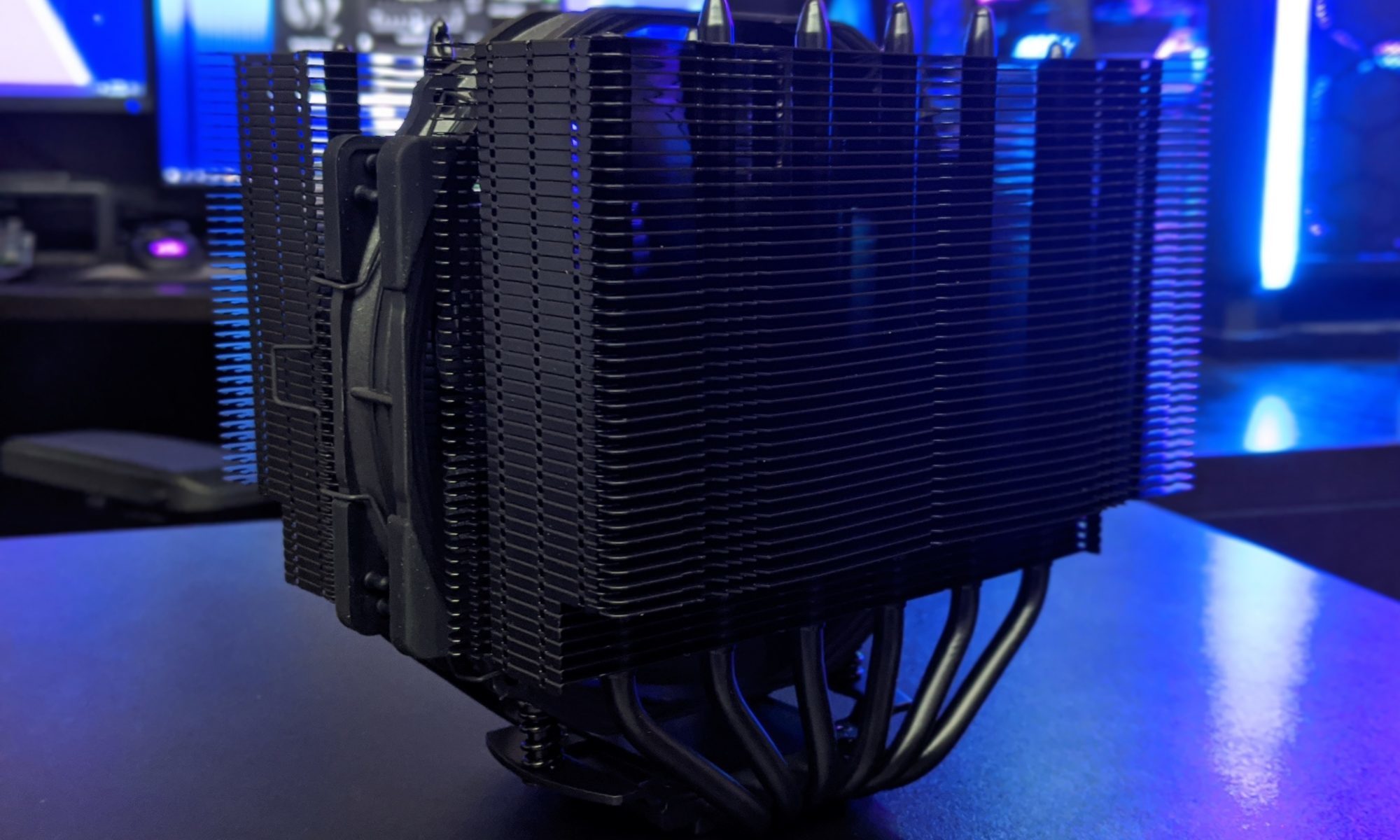
Physical clearance deserves attention in compact builds. Tall RGB heat spreaders can interfere with large air coolers, and radiator placement can limit access to the DIMM slots. If your system uses liquid cooling, planning component dimensions alongside compact-case AIO guide can prevent an expensive installation problem.
Enable and test the memory profile correctly
After installing the kit, enter the UEFI or BIOS and enable EXPO on AMD or XMP on Intel. The setting may appear under a menu labeled overclocking, memory, tweaker, or advanced frequency settings. Save and reboot, then verify the actual memory speed in the firmware or with a monitoring utility inside the operating system.
The first boot after changing memory settings can take longer than usual. DDR5 platforms may perform memory training, during which the system repeatedly initializes the modules before displaying an image. Avoid interrupting this process unless it clearly fails after several minutes.
Stability testing should be part of the setup process. Run a memory-focused test such as MemTest86, TestMem5, Karhu RAM Test, or a suitable operating-system stress utility. Follow that with the games and applications you actually use. Errors, application crashes, corrupted archives, and unexplained blue screens can all indicate unstable memory, even if the desktop appears normal.
If the profile fails, reset the BIOS and try a lower memory speed before increasing voltage manually. Updating the motherboard BIOS can improve compatibility, especially with newer DDR5 kits and large-capacity modules. Avoid copying aggressive settings from another system because two processors with the same model can have different memory-controller limits.
Choose sensible capacity and timings
For a new gaming PC, 32GB remains a practical minimum for a balanced build, especially when paired with a modern graphics card and a fast SSD. Systems used for streaming, 4K editing, large photo libraries, or development workloads should start at 64GB. Capacity shortages cause paging to storage, and no memory profile can compensate for insufficient RAM.
DDR5 pricing has made larger kits more accessible, but capacity still needs to match the motherboard's electrical limits. Very large 2x48GB or 2x64GB kits can be excellent for workstations, though they may run at lower speeds than smaller modules. In those cases, reliable capacity is usually more valuable than chasing a headline frequency.
RGB lighting, heat spreader design, and brand reputation are secondary considerations. Focus first on the correct memory generation, module count, capacity, profile type, voltage, timings, and warranty. A plain kit that runs consistently at its rated settings is a better purchase than a visually impressive kit that requires repeated BIOS resets.
Practical buying checks
- Choose an EXPO kit for AMD AM5 and an XMP kit for Intel unless the memory explicitly supports both profiles.
- Prefer two matched DIMMs, such as 2x16GB or 2x32GB, rather than mixing separate kits.
- Compare frequency and CAS latency together; DDR5-6000 CL30 is often a useful AMD target, while Intel systems may favor different speeds.
- Confirm the motherboard's QVL, maximum capacity, BIOS version, and recommended DIMM slots.
- Treat the advertised profile as an overclock and test stability after enabling it.
The safest upgrade is a matched memory kit selected around the entire system rather than the RAM label alone. Check your CPU and motherboard documentation, install the modules in the correct slots, enable the appropriate profile, and verify performance with real workloads. That process turns EXPO or XMP from a marketing specification into a stable, measurable improvement for your PC.