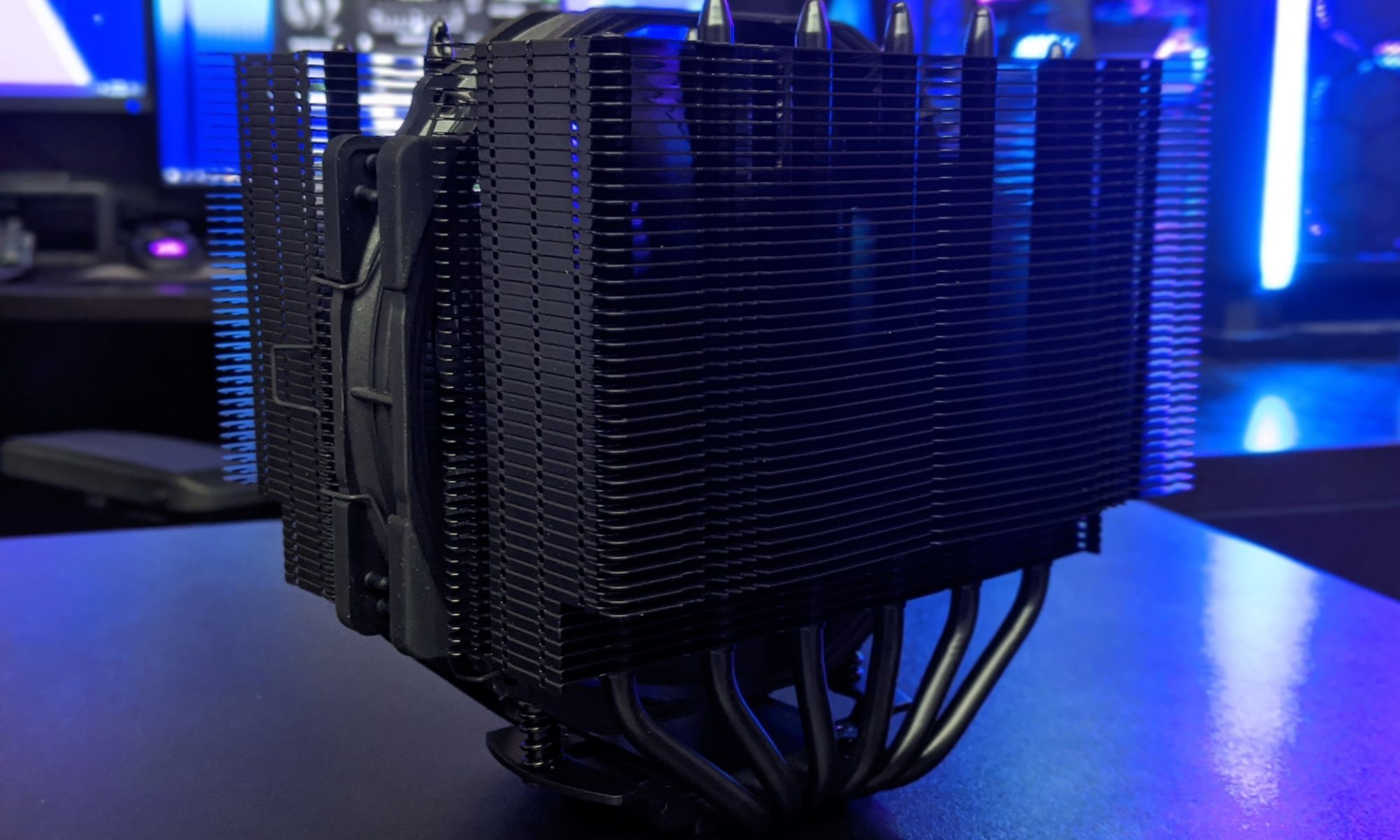
Typical fan RPM versus PWM duty cycle on a motherboard
Motherboard fan controls often present two measurements that appear directly connected: PWM duty cycle and fan speed in RPM. It is tempting to assume that 50% PWM always means half the fan’s maximum speed, but real systems rarely behave so neatly. The fan motor, controller, blade design, bearing type, firmware and chosen control mode all affect the result.
For Australian PC builders, this matters during a hot Brisbane afternoon, a dusty Adelaide summer or a gaming session in an upstairs room in Western Sydney. A fan curve that seems quiet in a cool shop can become much louder when room temperature rises. Understanding the relationship between the control percentage and actual fan speed makes it easier to tune cooling without creating unnecessary noise.
What PWM duty cycle actually controls
PWM stands for pulse-width modulation. A four-pin fan receives a steady supply voltage while the motherboard sends a control signal that rapidly switches on and off. The percentage of time the signal is active is the duty cycle. At 30% duty, the fan receives a low control command; at 80%, it receives a much stronger command.
The duty cycle does not directly dictate a precise RPM value. Instead, it tells the fan’s internal controller how aggressively to drive the motor. Two fans connected to the same header at 50% PWM can spin at noticeably different speeds. A large 140 mm fan may turn at 600 RPM, while a compact high-speed 120 mm model could exceed 1,000 RPM under the same setting.
Fans also have a minimum operating threshold. A model might fail to start at 15% PWM, stall after slowing down, or maintain a manufacturer-defined minimum of 400 RPM. Some fans support a zero-RPM mode, while others continue spinning at a low speed regardless of the selected percentage. This is why a fan curve needs to be tested rather than calculated from percentages alone.
A motherboard may also apply its own minimum duty limit. If the BIOS is set to 20%, the header could actually output the lowest value the fan accepts, such as 30% or 35%. The reported setting is therefore best viewed as a control instruction, not a guaranteed electrical or mechanical measurement.
Typical speed ranges for common PC fans
Most standard 120 mm case fans operate somewhere between 300 and 1,800 RPM. Quiet-focused models often top out near 1,200 or 1,500 RPM, while performance fans can reach 2,000 RPM or more. At approximately 30% PWM, a typical fan may sit around 500–700 RPM; at 50%, it might reach 800–1,100 RPM; and at 100%, it will approach its rated maximum.
A 140 mm fan usually produces useful airflow at lower rotational speed. Around 400–600 RPM is common at a low duty cycle, with 700–1,000 RPM suitable for ordinary gaming loads. Many 140 mm models peak between 1,200 and 1,500 RPM. Their larger blades can move more air quietly, although the case must support the mounting size and the fan’s frame must seal reasonably well against the panel.
CPU cooler fans have a wider range. A 120 mm tower cooler fan may idle around 400–700 RPM and climb to 1,500–2,000 RPM during a sustained render or stress test. Slim coolers and small-form-factor systems use smaller fans that may need 2,000–3,000 RPM to deliver enough pressure through a dense fin stack. Those higher figures can be perfectly normal, even if they sound alarming in monitoring software.
Liquid-cooling pumps are a separate category. An AIO pump may run at 1,800–3,000 RPM, often with a comparatively steady speed. Its RPM reading should not be interpreted like a case-fan reading, and it is generally preferable to run the pump at a fixed or near-fixed setting recommended by the manufacturer.
Why the RPM curve is rarely linear
A fan’s RPM response can be fairly flat at the bottom of its range, then rise quickly through the middle, and flatten again near maximum speed. For example, a fan might produce 450 RPM at 30% PWM, 850 RPM at 50%, 1,250 RPM at 70% and only 1,450 RPM at 100%. The final 30% of control range adds noise more readily than useful speed.
Air resistance also changes the result. A fan mounted behind a restrictive dust filter, radiator or tightly perforated front panel may spin at a similar RPM while moving less air. Static pressure, blade geometry and motor control matter as much as the number shown by the motherboard. A high-RPM fan is not automatically the best choice for a filtered case intake.
Fan curves can also react to the wrong temperature source. A case fan linked to the CPU package temperature may surge every time the processor boosts for a brief task. Linking it to motherboard, chipset or a manually blended sensor can create a calmer response, while the CPU cooler itself should usually track CPU temperature closely.
Hysteresis and response delay are useful here. A fan controller that waits several seconds before changing speed prevents constant ramping. Without that delay, a Ryzen or Core processor can jump from 600 RPM to 1,400 RPM and back again during ordinary desktop activity, producing an irritating pulsing sound even when temperatures are safe.
Reading BIOS and monitoring software correctly
Before tuning a header, identify whether it is configured for PWM or DC control. PWM mode is intended for four-pin fans. DC, or voltage-control mode, is designed for three-pin fans and adjusts the supply voltage instead. Setting the wrong mode can leave a fan stuck at full speed, fail to start it, or cause unstable operation.
The motherboard may display duty cycle, fan tachometer speed, temperature and sometimes voltage in separate fields. Tachometer RPM normally comes from a pulse signal generated by the fan, commonly two pulses per revolution. If a splitter does not pass the tachometer signal correctly, the BIOS may show zero RPM even though every connected fan is spinning.
Fan splitters and hubs deserve attention. A powered hub draws motor current from SATA power while using the motherboard header for the control signal. A simple unpowered splitter relies on the header’s current limit, which is often around 1 amp but varies by board. Several high-draw fans can overload a header, particularly during startup when motors briefly demand more current.
Run the motherboard’s fan calibration routine where available, then observe the lowest stable speed. Let each fan spin for a minute at several control points and record the actual RPM. A practical curve might use 30% as the minimum stable value, 45% for light load, 65% for moderate heat and 85–100% only when temperatures justify it.
Building a useful curve for Australian conditions
Room temperature changes the starting point for every cooling test. A desktop tested at 21°C in an air-conditioned Melbourne office will behave differently from the same machine in a Perth room sitting at 30°C. At higher ambient temperature, idle CPU and GPU temperatures rise even when the hardware is operating normally, so a fixed “quiet” curve may need an earlier increase.
Dust is another local consideration. Homes near major roads, dry inland areas or renovation work can load filters quickly. A clogged front filter increases restriction and raises component temperatures without changing the selected PWM percentage. Cleaning filters and checking heatsink fins can restore airflow more effectively than simply raising every fan to maximum.
For a typical gaming tower, a sensible starting point is a low-speed idle range around 25–35% PWM, provided the fans remain stable. During gaming, 45–70% is common, with the upper end reserved for sustained CPU or GPU heat. A CPU fan can use a sharper curve, such as 30% below 45°C, 50% near 65°C, 70% around 80°C and full speed at a safe limit below the processor’s thermal ceiling.
Do not chase a particular RPM number at the expense of acoustics. An extra 200 RPM may lower a CPU temperature by only a few degrees while creating a noticeable tonal whine. Check temperatures after a sustained workload, not just a short benchmark. In Australian summer conditions, allowing a little additional noise during a long gaming session is often preferable to running a silent curve that leaves the system heat-soaked.
Balancing noise, temperatures and hardware value
The best fan speed is the lowest speed that maintains acceptable component temperatures, stable clocks and comfortable noise. A case with sensible intake and exhaust placement can achieve that balance at lower RPM than a poorly ventilated case filled with high-speed fans. Positive or slightly neutral pressure, created by a little more filtered intake than exhaust, can also help reduce unfiltered dust entry.
Listen for different types of noise while tuning. Motor hum is usually present across a broad RPM range, bearing noise may worsen with age or orientation, and turbulence can appear when a fan meets a restrictive grille. A fan that is quiet at 900 RPM may become harsh at 1,100 RPM because of a resonance in the case, so the smoothest curve is not always the mathematically lowest one.
Use monitoring software to compare CPU temperature, GPU temperature, fan RPM and duty percentage during the same workload. Record the room temperature as well. A change from 25°C to 32°C ambient can make a perfectly healthy system appear to have a worse fan curve, when the real difference is the amount of heat the cooler must reject.
Hands-on demonstrations can help reveal how these settings sound outside a specification sheet; Hardware Hounds’ video coverage is a useful place to see cooling and hardware behaviour in practice. Ultimately, expect variation rather than a universal conversion chart. PWM percentage sets the request, RPM shows the response, and your motherboard’s fan curve should be tuned around the actual fans, case restrictions, workload and room climate.