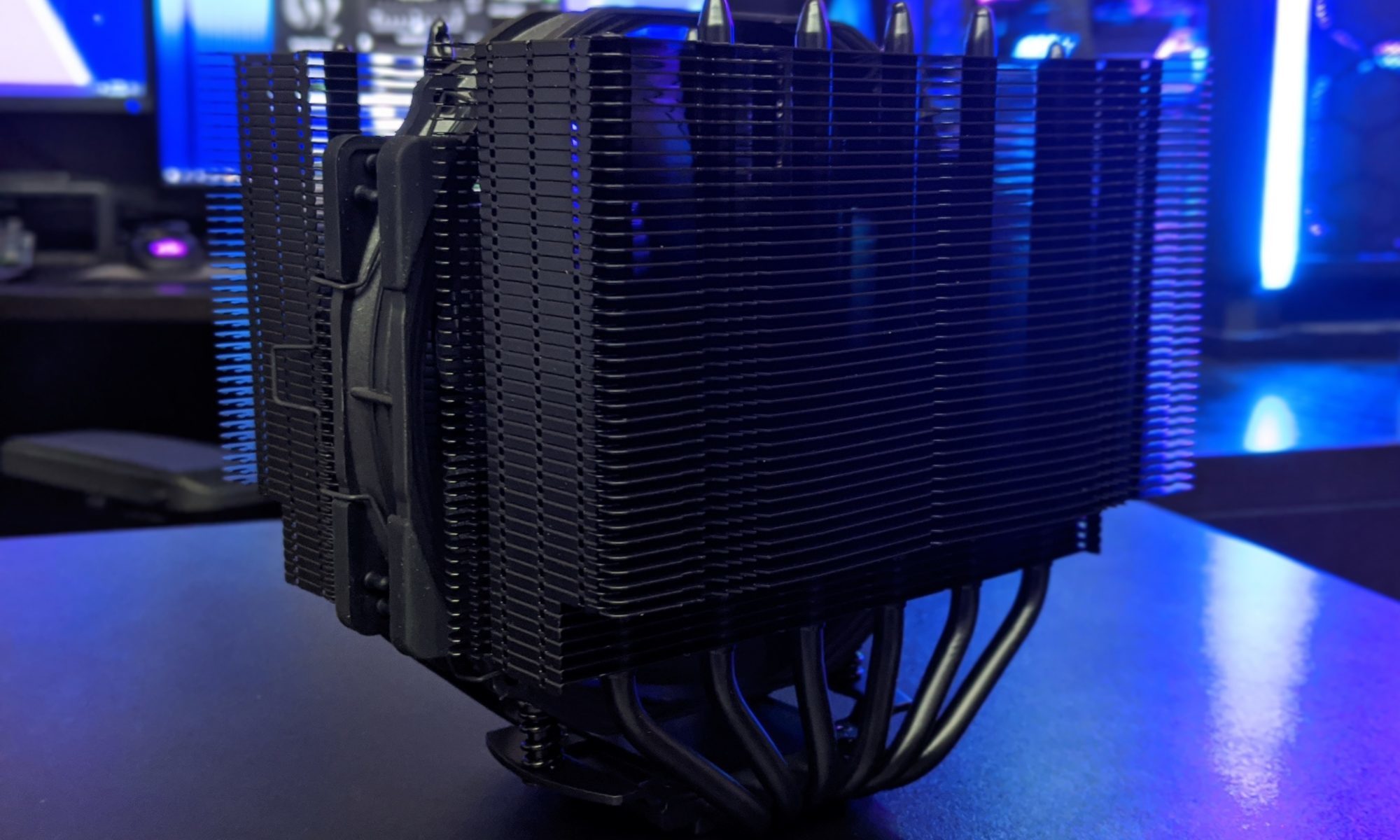
Why quiet case fans beat peak speed for real-world PCs
A case fan’s maximum RPM looks impressive on a specification sheet, but it says little about how pleasant a computer will be to use. Why noise levels matter more than peak fan speed in a case becomes clear once a system is sitting beside you for hours. A fan that reaches 2,000 RPM may move substantial air, yet its high-pitched whine, motor hum, or turbulent airflow can make everyday work and gaming unnecessarily distracting.
Cooling performance still matters. Lower temperatures can protect sustained boost clocks, improve component longevity, and give an overclocked system more thermal headroom. The useful goal, however, is a balanced airflow system that removes heat without turning the PC into a constant source of acoustic pressure.
This is especially relevant as modern CPUs and graphics cards push more heat into compact cases. A carefully tuned fan curve, sensible intake and exhaust placement, and a case designed to reduce turbulence can often deliver better real-world results than simply installing the fastest fans available.
RPM is only one part of airflow
Revolutions per minute describe how quickly a fan rotates, not how effectively it cools a particular case. Blade shape, diameter, motor design, static pressure, and the resistance created by dust filters or radiator fins all affect the final airflow. A large 140 mm fan running slowly can move a similar amount of air to a small 120 mm model spinning much faster, usually with a gentler acoustic signature.
Peak speed is also a worst-case figure. Most desktop systems spend much of their time browsing, writing, streaming, or sitting idle. A fan that is loud at its maximum setting may rarely reach that point, but its behavior through the midrange is far more important for daily use. Poorly tuned fans can repeatedly surge in response to short temperature spikes, creating an irritating rise-and-fall pattern.
Airflow specification claims should therefore be treated as a starting point rather than a guarantee. A fan may post a high cubic-feet-per-minute figure in open-air testing, while its performance falls sharply behind a restrictive front panel. Case testing under comparable conditions gives a clearer picture of what the hardware can actually accomplish.
The ear notices character, not just volume
Two fans can produce the same measured sound-pressure level and still feel completely different in a room. Broadband airflow noise resembles a steady rush and is often easier to ignore. Tonal noise, clicking bearings, electrical motor buzz, or blade-passing hum creates a distinct frequency that remains noticeable even when the overall decibel reading is modest.
Human hearing is particularly sensitive to persistent tones. A fan that produces a narrow, high-frequency whine may seem louder than a smoother model measured at the same level. Resonance from a metal panel or a loosely mounted fan can amplify that sound, turning a minor vibration into a case-wide rattle.
This is why reliable reviews should report more than a single maximum noise value. Measurements at idle, typical gaming load, and a normalized airflow or temperature target reveal how a fan behaves across its useful range. Hardware Hounds readers can also follow the site’s latest hardware news for new case and cooling releases where acoustic design is becoming a larger part of the discussion.
Quiet operation improves the whole computing experience
Lower noise changes how a computer fits into a room. A quiet system is easier to use during voice calls, music playback, recording, study, or late-night gaming. It also reduces the temptation to wear headphones simply to mask fan noise, which can make long sessions less comfortable.
Acoustic comfort becomes more valuable as performance increases. A powerful GPU may already produce coil whine or significant heat, leaving the case fans to manage their share of the noise budget. If every fan is configured to run aggressively, the combined result can be far louder than any single specification suggests.
There is also a practical advantage to avoiding unnecessary speed. Fans running near their upper limit consume more power and place greater demand on bearings and motors. A smooth curve that reaches high RPM only when temperatures genuinely require it can preserve cooling capacity while reducing wear and distracting fluctuations.
| Fan strategy | Typical benefit | Common drawback | Best use |
|---|---|---|---|
| High-RPM 120 mm fans | Strong airflow in restricted spaces | Higher pitch and turbulence | Dense cases or demanding radiators |
| Low-speed 140 mm fans | Quiet airflow at moderate temperatures | May not suit tight mounting areas | Spacious gaming and workstation cases |
| Aggressive automatic curve | Fast response to heat spikes | Frequent speed changes and audible surges | Short, high-load bursts |
| Gradual custom curve | Stable acoustics and predictable cooling | Requires basic BIOS or software tuning | Most everyday desktop systems |
| Rubber-mounted premium fans | Reduced vibration and smoother bearings | Higher purchase price | Quiet builds and recording rooms |
Case design can matter more than fan choice
A fan cannot compensate fully for a restrictive chassis. Solid front panels, narrow vents, dense dust filters, and poorly positioned drive cages increase resistance. The fan must spin faster to maintain flow, which raises both motor noise and turbulence. A mesh front panel with a clear path to the components can produce lower temperatures at a lower speed.
The placement of fans matters as well. Two front intakes and one rear exhaust often provide a sensible starting point, but the best arrangement depends on the case and the heat sources inside it. A large graphics card can block part of the front-to-back path, while a top-mounted radiator may exhaust warm air directly above the CPU area.
Excess fans do not automatically improve cooling. Adding several high-speed units can create competing airflow streams, pressure losses, and extra noise without lowering component temperatures meaningfully. A smaller number of well-positioned fans running steadily is often the quieter and more efficient solution.
Fan curves turn hardware into a system
A fan curve determines how quickly a fan responds to temperature changes. The default motherboard profile may prioritize low temperatures over comfort, sending the fans to a higher speed whenever the processor briefly boosts. This behavior can make a system sound nervous even when its average temperature is perfectly safe.
A custom curve should account for temperature hysteresis and response delay where the motherboard supports those controls. Holding a fan at its current speed for a short period before reacting to a brief spike prevents constant oscillation. Gradual steps also feel less intrusive than sudden jumps from near-silent operation to full speed.
CPU and case fans should work together rather than react independently. If the CPU cooler accelerates immediately while the case fans remain slow, warm air can linger inside the chassis. If every fan responds to every small sensor change, the system becomes unnecessarily active. Using a motherboard sensor, CPU package temperature, or a carefully selected blend can create a more stable response.
How to evaluate acoustic performance
When comparing fans, test them at equal temperatures or equal airflow instead of comparing maximum RPM alone. A model that sounds quiet at 800 RPM may move less air than another model at the same setting. Conversely, a fan that is louder at maximum speed may deliver the required cooling at a lower, quieter operating point in a well-ventilated case.
Listening tests should include multiple distances and workloads. A fan may be unobtrusive beneath a desk but clearly audible on a desktop. Idle, office work, gaming, and a sustained CPU or GPU load can reveal bearing noise, speed oscillation, and interactions between case panels and airflow.
Useful evaluation points include:
- Measure sound at several fixed speeds, not only the maximum setting.
- Compare temperatures at a shared noise limit to find the most efficient fan.
- Listen for tonal whine, clicking, rattling, and vibration separately from airflow rush.
- Check performance behind the actual case panel, filter, or radiator.
- Test the fan curve over time so short temperature spikes do not distort the result.
The same principles apply when choosing between stock and premium fans. Paying more for a refined bearing, stronger frame, or better blade geometry can be worthwhile if the system will operate close to you every day. A cheaper fan may still be an excellent choice when it runs at a low speed and the case has an unobstructed airflow path.
Build around a comfortable noise floor
The best quiet PC is not necessarily the one with the lowest possible idle reading. It is the system whose normal operating sound fades into the room and leaves enough acoustic headroom for demanding workloads. This requires matching fan size, case layout, component power limits, and curve settings rather than focusing on one impressive specification.
Start with efficient airflow and then tune for the lowest speed that maintains acceptable temperatures. Consider a larger fan where the case supports it, secure every mounting point, and use rubber isolators if vibration reaches the panels. Keep filters clean, since accumulated dust raises resistance and gradually forces higher fan speeds.
A sensible noise target also helps when selecting components. A graphics card with a quiet cooler, a power supply with a semi-passive mode, and a CPU cooler with a smooth fan profile can leave the case fans less work to do. The result is a system that performs consistently without demanding attention from the room around it.
Set up the fan curve, verify temperatures during real workloads, and listen for the sounds that measurements may miss. Prioritizing stable, quiet airflow over headline RPM produces a computer that remains comfortable long after the specifications stop being impressive.