A practical path to cooler, quieter GPU performance
A graphics card rarely needs every watt available to deliver its best gaming experience. Factory settings are designed to cover a wide range of chips, cases, workloads, and ambient temperatures, so many GPUs use more voltage than necessary to sustain their rated boost clocks. Undervolting trims that excess while preserving most of the frame rate.
The process involves adjusting the relationship between voltage and frequency rather than simply lowering a single number. With careful testing, you can reduce GPU temperatures, fan noise, and power consumption while keeping performance close to stock. In some cases, a cooler card may sustain higher clock speeds for longer because it encounters fewer thermal limits.
This guide focuses on safe, repeatable tuning for modern AMD and Nvidia graphics cards. The exact controls differ between manufacturers, but the principles are consistent: establish a baseline, make small changes, test each step, and keep a profile that can be restored easily.
Why undervolting works
A GPU’s boost algorithm constantly balances frequency, voltage, temperature, and power draw. Higher clock speeds generally require more voltage, but the efficiency curve is uneven. The last few hundred megahertz often demand a disproportionate increase in power. Removing that inefficient portion can deliver a better performance-per-watt result.
Undervolting does not mean forcing the card to run at a permanently low speed. Instead, you select a target frequency at a lower voltage point on the card’s voltage-frequency curve. For example, a GPU that reaches 2,700 MHz at 1.10 volts might sustain 2,600 MHz at 0.95 volts with only a small frame-rate difference and a substantial drop in heat output.
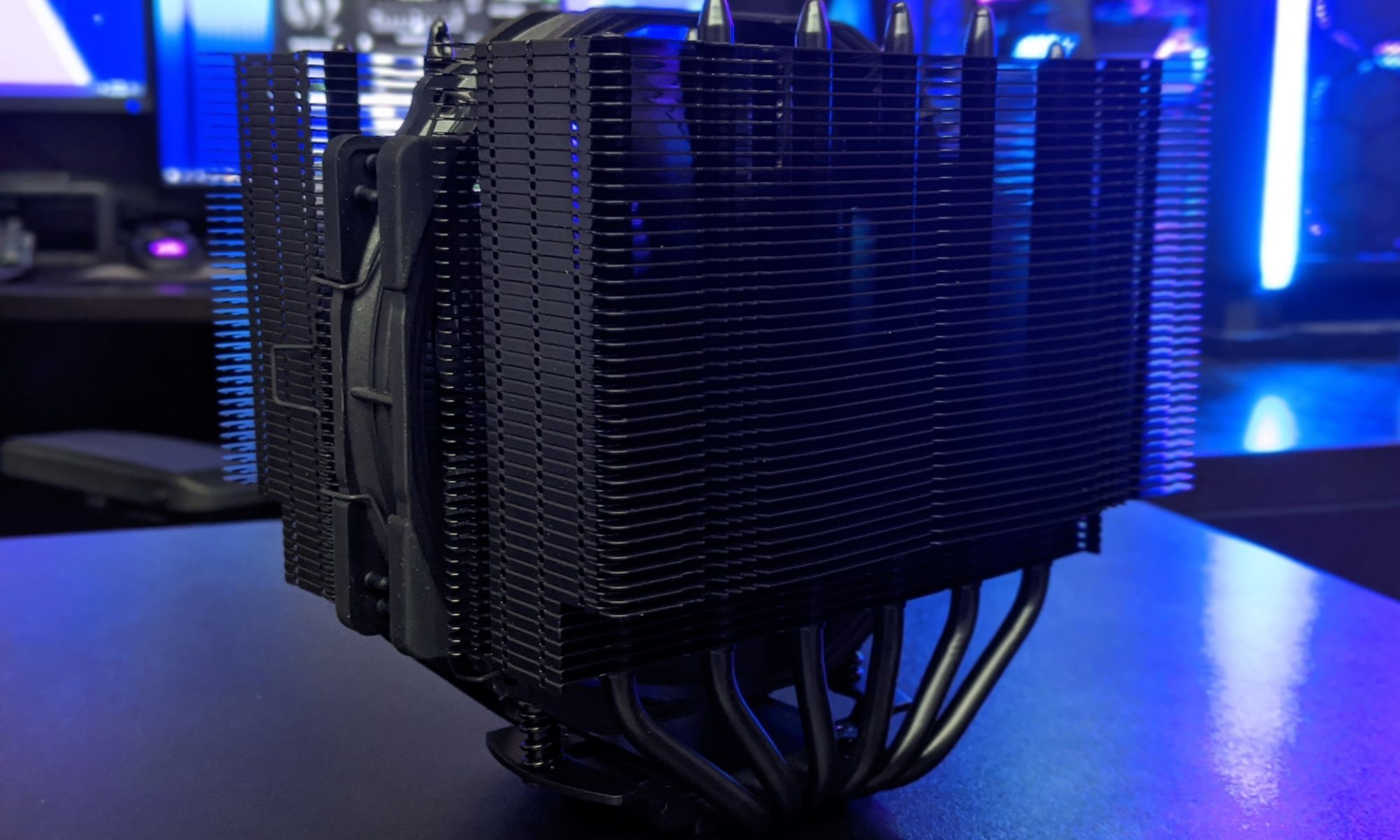
The benefits depend on the workload. A competitive game at high frame rates may expose a small performance loss, while a graphically demanding single-player title may feel identical. Reduced power draw also helps compact systems, poorly ventilated cases, and builds where GPU noise is more noticeable than CPU noise. For broader thermal context, this thermal showdown illustrates how cooling hardware affects sustained operating conditions.
Prepare a reliable baseline
Record stock behavior before touching the tuning controls. Run a repeatable benchmark or a demanding game for at least 15 minutes, noting average frame rate, one-percent lows, GPU temperature, hotspot temperature, board power, fan speed, and clock frequency. Software such as HWiNFO, GPU-Z, MSI Afterburner, or the AMD Adrenalin overlay can provide these readings.
Use the same resolution, graphics preset, ray-tracing settings, and frame-rate limit for every comparison. A changing test environment can hide instability or make a successful undervolt appear faster than stock. If possible, save screenshots or export monitoring logs so the results remain easy to compare.
Update the graphics driver before testing, then disable unrelated automatic tuning features. Features such as Radeon automatic overclocking, Nvidia app performance tuning, motherboard software, and aggressive frame-generation changes can complicate the results. Create a restore point inside the tuning utility by saving the stock profile.
Adjust the voltage-frequency curve
Nvidia users commonly work in MSI Afterburner. Open the voltage-frequency curve editor, select a voltage point, and assign the desired frequency to it. A practical starting point is usually between 900 and 975 millivolts, depending on the GPU generation and model. Set a frequency modestly below the card’s observed stock boost, then flatten the curve to the right so the card does not attempt to boost beyond the chosen point.
AMD users can use Adrenalin’s performance tuning panel. The controls may offer minimum and maximum frequency, voltage, power limit, and VRAM settings rather than the same visual curve editor. Begin by reducing the maximum voltage gradually while leaving memory at stock. Some Radeon cards also respond well to a small reduction in the maximum frequency, which can stabilize a lower-voltage target with very little gaming impact.
Change one variable at a time. A common mistake is to reduce voltage, raise memory speed, alter the power limit, and change the fan curve in one session. If the system crashes, there is no clear way to identify the cause. Save each successful profile with its voltage and frequency written in the name.
Test stability across real workloads
A benchmark that completes once does not prove a setting is stable. Run a demanding 3D test for 20 to 30 minutes, then play several games that use different engines. Heavy ray tracing, shader compilation, open-world traversal, and menu transitions can trigger behavior that a fixed benchmark misses.
Watch for driver resets, black screens, application crashes, visual artifacts, sudden clock drops, and corrupted textures. A system may also remain technically stable while producing worse one-percent lows because the GPU is repeatedly hitting a voltage or power ceiling. If any of these symptoms appear, increase voltage slightly or reduce the target frequency by 15 to 30 MHz.
Memory tuning deserves separate attention. VRAM errors can look like GPU-core instability, especially when the memory overclock was carried over from an earlier profile. Keep memory at stock until the core undervolt is proven stable. Afterward, test memory separately and use a conservative setting if the card shows flickering textures or intermittent crashes.
Compare temperatures, noise, and frame rates
The best undervolt is not necessarily the one with the lowest reported temperature. A profile that lowers the GPU by 10 degrees but loses noticeable frame rate may be less useful than one that cuts 6 degrees while maintaining consistent performance. Look at the whole result: average FPS, one-percent lows, clock stability, power draw, and acoustic behavior.
| Metric | Stock result | Undervolt result | What to look for |
|---|---|---|---|
| Average frame rate | 142 FPS | 140 FPS | A small change is often acceptable |
| One-percent low | 101 FPS | 100 FPS | Avoid a noticeable drop in smoothness |
| GPU temperature | 76°C | 67°C | Lower sustained heat is a practical gain |
| Hotspot temperature | 94°C | 82°C | A large reduction may improve boost behavior |
| Board power | 285 W | 225 W | Indicates the efficiency benefit |
| Fan speed | 1,850 RPM | 1,420 RPM | Lower speed usually means less noise |
Temperatures should be compared at the same room temperature and with the same case fan profile. Hotspot readings are especially useful on modern GPUs because the edge temperature can look reasonable while a concentrated area of the die runs much hotter. A wide gap between core and hotspot temperatures may indicate mounting, paste, or cooler contact issues rather than a tuning problem.
Frame caps can make undervolting even more effective. If a game is already limited to 100 FPS by a monitor or software cap, reducing the card’s maximum power while holding that target can produce a quieter result with no visible performance loss. For uncapped benchmarking, compare sustained clocks and frame times rather than relying on a single average FPS number.
Handle failed profiles safely
A failed undervolt usually causes a recoverable driver crash rather than permanent hardware damage, provided you avoid extreme voltage or power settings. If the screen goes black, wait briefly for the driver to restart. If the system remains unresponsive, reboot and launch the tuning tool without automatically applying the failed profile. Windows Safe Mode can help remove a profile that loads too early.
Keep the voltage within the limits exposed by the manufacturer’s software. Do not modify firmware or use unofficial voltage controls unless you understand the risks and have a recovery method. Undervolting is generally lower risk than overvolting, but unstable settings can still cause data loss if a crash occurs during a game update, file transfer, or other write operation.
A good profile should survive cold boots, warm restarts, long gaming sessions, and a range of workloads. Test after driver updates as well, since changes to boost behavior or power management can affect stability. Store a known-good stock profile and a conservative undervolt profile so you can switch back quickly.
A sensible tuning routine
Use this sequence to keep the process controlled and easy to troubleshoot:
- Measure stock performance, temperatures, hotspot readings, fan speed, and power draw.
- Choose a moderate target, such as 900–975 mV, without changing memory settings.
- Reduce voltage or set the curve target in small steps, saving each stable profile.
- Run synthetic tests and several demanding games while checking frame times and artifacts.
- Compare efficiency gains against frame-rate loss before making the profile permanent.
Once a stable setting is found, refine the fan curve only after the voltage and frequency are settled. A lower-power GPU may need less fan speed, allowing a quieter acoustic profile. Avoid disabling thermal protections or setting an unnecessarily aggressive power limit; the card’s built-in safeguards should remain active.
It is also worth testing separate profiles for different uses. A competitive gaming profile may prioritize maximum clocks, while a quiet profile can target a lower frequency for single-player games, video playback, or everyday work. Most tuning utilities allow these profiles to be saved and selected without repeating the entire process.
A successful GPU undervolt is measured by the complete experience: nearly unchanged frame rates, lower temperatures, reduced power consumption, and less fan noise. Start with your stock data, make one adjustment at a time, and validate the result in the games and applications you actually use. Save the stable profile, monitor it over time, and enjoy a cooler graphics card that spends less energy chasing performance you may never notice.